This chapter contains the following topics:
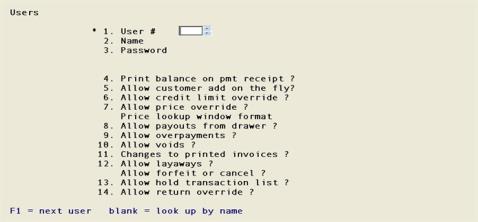
Use this selection to enter users for the PBS Point of Sale. These users, specific to Point of Sale, provides security in addition to your PBS log in security. Only those users that are allowed can have access to their register and cash drawer.
Point of Sale user information is used to identify users who will be processing transactions in Point of sale, assign passwords to these users, and define the authority within the Point of Sale environment.
See a User List example in the Sample Reports appendix.
Select
Users from the Setup information menu.
From this screen you can add new users or change existing users. You may also delete existing users when they are no longer required.
*1. User #
Enter the number or code for the user you wish to define or change or use the options:
|
<F1> |
To scan existing users |
|
<Enter> |
To search for an existing user by name |
|
Format |
Up to three characters |
|
Example |
Type ANL |
2. Name
Enter the name of the user being added or the full or partial name of an existing user or use the options:
|
<F1> |
To scan existing users |
|
<Enter> |
To search for an existing user by User # |
|
Format |
Up to 25 characters |
|
Example |
Alan Leland |
If you answered N to the Use user passwords ? field in Point of Sale Control information, the field will not be available.
Enter a password for this user. The user will be required to enter this password before being allowed access to Point of Sale transaction processing.
|
Format |
Up to ten characters |
The following permission fields define the authority the user will have in the Point of Sale Transactions selection.
If a user attempts to perform a function they have not been authorized for, they will be prompted for a different user ID. At this point, someone who is authorized for this function, such as a floor supervisor, can sign on and complete the transaction. After the transaction is completed, control is returned to the original user.
|
Note |
There is no direct relationship with this password and the password that is required to log into PBS. They can be the same or different. |
4. Print balance on pmt receipt ?
This allows the customer’s previous balance and balance remaining to print on an A/R payment receipt.
|
Format |
One character, either Y or N |
|
Example |
Type Y to print balance on pmt receipt |
5. Allow customer add on the fly ?
Depending on the value entered in this field, a user will have the authority to add customers to Accounts Receivable Customers while entering a Point of Sale transaction.
|
Format |
One character, either Y or N |
|
Example |
Type Y to allow this user to add customers on the fly |
6. Allow credit limit override ?
You may give users the authority to override a customer’s credit limit should this control kick in while processing an order for a customer.
|
Format |
One character, either Y or N |
|
Example |
Type Y to allow this user to override customer credit limits |
You may give users the authority to override item prices. If you do give a user authority to override item prices, you may limit the ways in which prices can be adjusted or allow unlimited override authority.
Each user is assigned a code that allows specific levels of override authority. You have three options.
|
Y |
Allow this user to enter any price they desire or select a price from the price lookup window. |
|
L |
Limit this user to price overrides shown in the price lookup window. |
|
N |
Do not allow this user any price override authority. |
|
Format |
One character, either Y, L, or N |
|
Example |
Type L to limit this user to price overrides displayed in the price lookup window. |
Price lookup window format
If you answered Y or L to allow price overrides for this user, you will have the option of defining the contents of the price lookup window that is displayed during a price override. The options are the following.
|
0 |
Do not allow price lookup window. |
|
1 |
Show purchase history. |
|
2 |
Show item price 1/2/3/4/5 |
|
3 |
Show purchase history and price 1/2/3/4/5. |
|
4 |
Show purchase history with cost and profit. |
|
5 |
Show item price 1/2/3/4/5 with cost and profit. |
|
6 |
Show both purchase history and item price 1/2/3/4/5 with cost and profit. |
Choose the format for the price lookup window that this user will be able to view.
|
Format |
One digit, 0 through 6 |
|
Example |
Type 1 to display the item purchase history when this user elects to override an item price. |
8. Allow payouts from drawer ?
Select Y to allow the user to issue payouts from their cash drawer. Payouts are accessed from the Transaction screen Miscellaneous functions via the <F5> key.
Payouts may be used for receivings or other cash transaction type deliveries.
The default G/L payout account is assigned in the Store record. If you are integrated with A/P, as defined in P/S Control information, payout distributions will post to the A/P distributions to G/L.
|
Format |
One character, either Y or N |
|
Example |
Type Y to allow this user to issue payouts from their drawer |
Your entry in this field determines whether this user will be allowed to accept overpayments.
An overpayout may be used for check payments written for more than the amount of the purchase. The overpayment amount is refunded as cash.
|
Format |
One character, either Y or N |
|
Example |
Type Y to allow this user to accept overpayments. |
If you authorized the user to accept overpayments, you will be prompted for the maximum overpayment amount.
Amt
Enter the maximum overpayment that this user is allowed to accept.
|
Format |
Up to 99999.99 |
|
Example |
Type 50 to allow this user to accept a maximum overpayment amount of $50.00. |
Your answer here determines whether the user will be able to void a fully entered transactions before it has been printed.
All users will be able to void a partially entered transaction when in the process of adding it.
|
Format |
One character, either Y or N |
|
Example |
Type N to deny this user the authority to void a fully entered transaction. |
11. Changes to printed invoices ?
After an invoice is printed, Point of Sale does not allow the invoice to be deleted or changed.
Your entry here determines whether the user will be allowed to remove the **Invoice printed** status from a Point of Sale transaction generally in preparation for deletion or changing with reprint.
|
Format |
One character, either Y or N. |
|
Example |
Type Y to allow this user to remove the **Invoice printed** status from a Point of Sale transaction. |
12. Allow layaways
Enter Y to provide access to the layaway features in the POS system.
Your entry here determines whether the user will be allowed to enter a layaway Point of Sale transaction.
|
Format |
One character, either Y or N. |
|
Example |
Type Y to allow this user to enter a layaway transaction. |
Allow forfeits or cancellations
This value for this field will display as (Not applicable) and it cannot be entered if you selected N on field 12 Allow layaways.
A layaway forfeit may be necessary if a customer has provided a down payment for a layaway item but has never returned to finish making another payment or the final payment. Now you want to close the layaway and no longer want the cash to be assigned to the layaway liability account. Posting a forfeited layaway will move the amount for the received cash from the liability account to the forfeit account.
A cancellation is where a customer has made the decision to no longer make payments on the item and wants a refund of payments previously made.
You have the following options:
|
F |
Allow the user to forfeit a layaway only |
|
C |
Allow the user to cancel a layaway only |
|
B |
Allow the user to forfeit and cancel a layaway |
|
N |
Allow neither a layaway forfeit or cancellation |
|
Format |
Four characters, either F, C, B or N |
|
Example |
Type B |
13. Allow hold transaction list ?
Your answer here determines whether the user will be able to view a list of the transactions on hold.
|
Format |
One character, either Y or N |
|
Example |
Type N to deny this user the authority to view a list of transactions on hold. |
14. Allow return override ?
The entry here determines whether the user will be able to override the return payment. This means that a cash refund could be given when the original invoice was paid by credit card or to override a refund on a check below minimum days before refund.
|
Format |
One character Y or N |
|
Example |
Type Y to allow this user the authority to override. |
Field number to change ?
Enter the number of the field you wish to change or use one of the options.
|
<Enter> |
To save the information you have just entered for this user. |
|
<Esc> |
To discard entered or changed information for this user. |
Use this selection to print a list of register users. You can print information for a single user or a range of users.
Select
Users from the Reports, setup menu. The following screen displays:
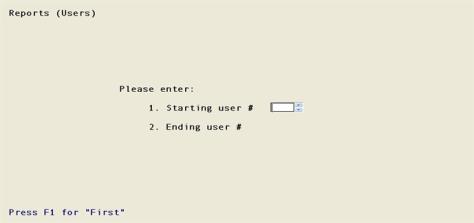
1. Starting register
Enter the starting number for a range of users you want to appear on this list or use the option: I
|
<F1> |
To default to the “First” user |
|
Format |
Up to 3 characters |
|
Example |
Press <F1> for the “First” user |
2. Ending user
Enter the ending number for the range of users you want to appear on the list of use the options:
|
<F1> |
To default to the “Last” user |
|
<Enter> |
To default to the user entered for the Starting user |
|
Format |
Up to 3 characters |
|
Example |
Press <F1> for the “Last” user |
Field number to change ?
Enter the number of the field you wish to change or use one of the options.
|
<Enter> |
To save the information you have just entered for this user and print the User list. |
|
<Esc> |
To discard entered or changed information for this user. |